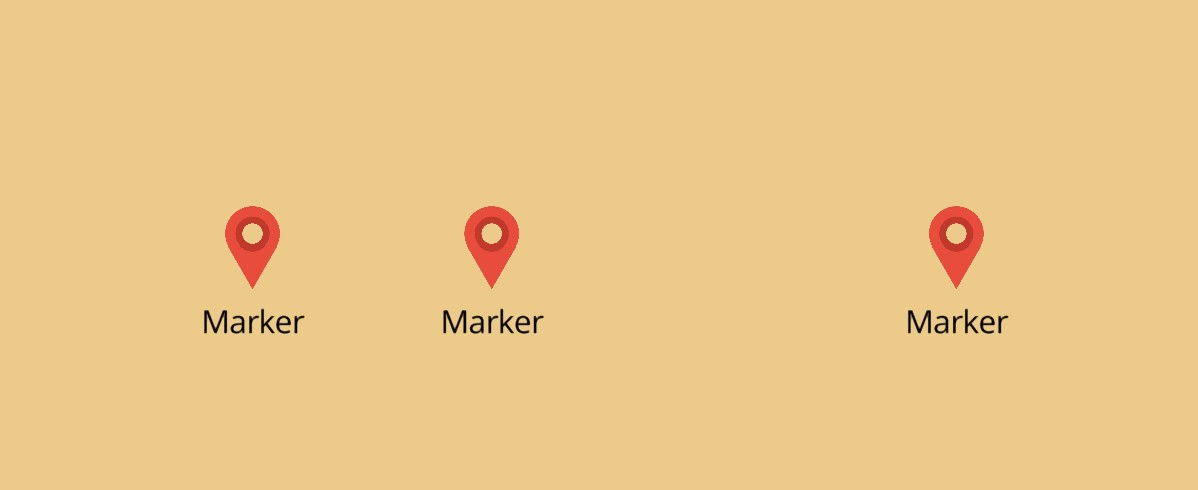
latefinalMapController_controller;@overrideWidgetbuild(BuildContextcontext){returnMapLibreMap(options:MapOptions(center:Geographic(lon:9.17,lat:47.68)),onEvent:(event)async{switch(event){caseMapEventMapCreated():_controller=event.mapController;caseMapEventStyleLoaded():// add marker image to mapfinalresponse=awaithttp.get(Uri.parse(LayersSymbolPage.imageUrl));finalbytes=response.bodyBytes;await_controller.addImage('marker',bytes);caseMapEventClick():// add a new marker on clicksetState((){_points.add(Point(event.point));});default:// ignore all other eventsbreak;}},layers:[MarkerLayer(points:<Point>[Point(Geographic(lon:9.17,lat:47.68)),Point(Geographic(lon:9.17,lat:48)),Point(Geographic(lon:9,lat:48)),Point(Geographic(lon:9.5,lat:48)),],textField:'Marker',textAllowOverlap:true,iconImage:'marker',iconSize:0.08,iconAnchor:IconAnchor.bottom,textOffset:const[0,1],),],);}
That's it! You can add multiple MarkerLayers with different
properties.
Update
To add, remove or alter annotation layers, just use setState() like you'd do
with Flutter widgets.
Check out
the example app
if you want to see how things come together.
Style & Layout
The MarkerLayer has a lot of parameters you can use for styling.
If you need more powerful customizations for your Markers, you can use the more
low level SymbolLayer.